Curling Challenge Guide: Scoring, Gauges, Sweeping, and Tips for All 10 Stages
What Is Curling Challenge?
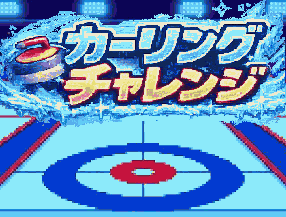
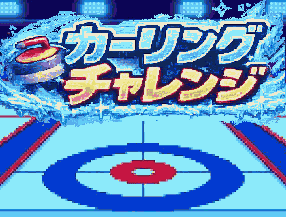
Curling Challenge is a stage-based browser game built around the most tense moment in curling: the last stone. Each stage starts with yellow opponent stones and red stones from your own team already in place, and you get exactly one red stone to throw for points.
Before each throw you set the power, aim, curl (spin), and starting position. Timing gauges then lock in the actual strength and direction, and while the stone slides you can sweep to adjust its distance and line. There's a Challenge mode that takes you through all 10 stages in order, a Practice mode for replaying any stage as often as you like, and a How to Play demo that walks through the controls. It runs on PC and smartphone with nothing to install.
This guide explains how scoring works, the full throwing sequence, and strategy tips grounded in how the stones actually move in the game.
Basic Rules
How Scoring Works
Points depend on distance from the button, the center of the house (the target rings).
- The reference point is the opponent's yellow stone that sits closest to the center among those in the house.
- Your score is the number of your red stones that are closer to the center than that reference stone. Red stones that were already placed at the start count too.
- If there are no opponent stones in the house at all, every red stone in the house scores.
- A stone touching the outermost ring even slightly counts as being in the house.
- Scoring stones are highlighted with a yellow ring.
Score at least one point to clear the stage; zero points is a miss. Any stone that slides off the left or right edge of the sheet, or past the far end, is removed from play.
Challenge Mode
- You play all 10 stages in order, starting from Stage 1.
- You have three lives (the ♥ icons in the top-right). Scoring zero costs one life, and you retry the same stage.
- Lose all your lives and the game is over.
- Points from each stage are added to your total, shown as SCORE at the top of the screen.
- Clearing Stage 10 gives you "All Clear!" and locks in your total.
The final screen shows your total and how many stages you cleared. If you beat the best score you've previously submitted to the rankings, "🎉 New Best!" appears and you can submit the new score. You can also share your result on 𝕏 (formerly Twitter) from here.
Practice Mode
Pick any stage by number and throw as many times as you want, with no lives or score to worry about. After each result, "Play Again" (or "Retry" after a zero) replays the same stage, and "Stage Select" takes you back to the stage list.
How to Play (Tutorial)
Press "📖 How to Play" on the title screen and the CPU demonstrates every step, from reading the house to finishing a throw. At the end, "🎳 Try it!" lets you practice on an empty house with no other stones in the way.
The 10 Stages at a Glance
Later stages put more stones in and in front of the house. "Front" means the side you throw from; "back" is the far side.
| Stage | Opponent (yellow) | Yours (red) | Layout |
|---|---|---|---|
| 1 | 1 | 1 | Opponent just behind and to the right of the button; your stone at the back right of the house |
| 2 | 2 | 1 | One opponent left of the button, one to the front right |
| 3 | 2 | 2 | Your own guard at the front center, on the edge of the outer ring |
| 4 | 2 | 2 | Opponents just right of the button and at the front left of the house |
| 5 | 1 | 2 | Opponent almost on the button; two of your guards side by side in front |
| 6 | 1 | 3 | One opponent almost on the button; three of your stones in the house |
| 7 | 3 | 2 | Three opponents and two of yours crowded around the button |
| 8 | 2 | 3 | Opponents on and near the button; your three stones are farther out |
| 9 | 2 | 4 | Two opponents near the button; two of your guards on the front side of the house |
| 10 | 4 | 3 | Four opponents and two of yours around the button; one of your guards in front |
Controls
Everything is done on the control panel at the bottom of the screen: click and drag with a mouse on PC, or tap and swipe on a phone. There are no keyboard controls. The game uses a portrait layout and scales to fit your screen.
Step 1: Set Up Your Shot
- POWER slider: Drag left or right to set a target distance from 0 to 100%. It starts at 50%.
- ← Aim Direction → pad: Swipe (or drag) left and right to change the throwing direction.
- ↺ / ↻ spin buttons: Add curl. ↻ makes the stone curve right and ↺ makes it curve left. Each press adds one step, up to four steps either way, and pressing the opposite button reduces it.
- POS slider: Moves your starting position left or right.
As you adjust these, a green dotted line (predicted path) and a translucent red "ghost" stone marking the predicted stopping point appear on the ice. When you're ready, press "🥌 Throw!"
Step 2: Lock In Power and Direction with the Gauges
- Power gauge: A bar sweeps back and forth. The yellow ▼ marker shows the target you set with POWER. Tap (or click) anywhere on the control panel to stop it, and wherever it stops becomes your actual power.
- Direction gauge: Next, a direction bar sweeps back and forth. Stop it on the red line in the center to throw exactly where you aimed; the farther from center, the more the throw drifts left or right.
Step 3: Sweep to Fine-Tune
Once the stone is moving, the control panel turns into a sweep area labeled "⬅ Left / Straight / Right ➡".
- Rub quickly inside the area with your finger or mouse to reduce friction on the ice so the stone travels a little farther. The faster you rub, the stronger the effect; slow movements do nothing.
- Where you rub sets the direction. Rubbing on the left side pulls the stone left, rubbing on the right pulls it right, and rubbing near the center adds distance with almost no change of line. The closer to the edge, the stronger the sideways pull.
- Lift your finger (or release the mouse button) to stop sweeping.
When every stone has stopped, the score is calculated and the result is shown.
Other Buttons
- 🔊: Turns sound effects on or off (on the title screen and at the top of the screen during play).
- 🌐 language button: Switches between English and Japanese (title screen).
- ?: Shows the rules for Challenge and Practice.
- 📊 Rankings: Scrolls to the leaderboard section below the game on the game page.
Strategy Tips
1. Treat the Predicted Path as a Best-Case Baseline
The green dotted line and red ghost stone show where the stone would go if you stopped the power gauge exactly on the yellow marker, stopped the direction gauge dead center, and didn't sweep. They also don't account for what happens after hitting another stone. Gauge timing and sweeping will change the real result, so use the line as a reference rather than a guarantee.
2. When in Doubt, Throw a Little Light and Sweep the Rest
Sweeping can only make the stone go farther; it can never shorten a throw. A stone thrown too hard can't be saved, so aim to stop slightly short of your target and sweep to carry it the rest of the way.
3. The Direction Gauge Moves Fastest Through the Center
The gauge bar slows down near the ends and moves fastest as it passes through the middle. To stop it right on the red center line, tap slightly before the bar reaches it. The direction gauge starts moving from the center the instant you lock in your power and then swings at a steady rhythm, so count the rhythm to time your tap. Missing the center by a lot sends the stone well off your intended line.
4. Curl Bites Hardest Just Before the Stone Stops
In this game, curl gets stronger as the stone slows down. The stone barely bends right after release and does most of its curving near the end, so you can slide past a guard almost straight and then curl in behind it toward the center. The spin level isn't shown as a number, so press the spin buttons and watch how the predicted line bends.
5. Use POS to Shift Your Line Without Changing the Angle
Your aim angle is set independently of your starting position, so moving the POS slider shifts the whole line sideways while keeping the same angle. On stages with a guard in front of the house, slide over to the open side with POS first, then use aim and curl to bring the stone back toward the center.
6. Knock Out the Opponent's Best Stone to Score Your Own
Your score counts red stones inside the opponent's closest stone in the house. Knocking that yellow stone out, or pushing it farther from the center, can turn several of your pre-placed red stones into points at once. Stage 6, with a single opponent stone almost on the button and three of your stones already in the house, is the classic example.
7. Retries Keep Your Previous Settings
When you retry after a zero in Challenge mode, or replay the same stage in Practice, your previous power, aim, starting position, and curl are kept. Use the result to adjust one thing at a time ("a bit stronger," "a bit more to the left") and you'll close in on the right shot. Moving on to the next stage resets everything to the defaults (50% power, centered).
8. Scout Stages in Practice Before Your Challenge Run
Practice mode uses the same stage layouts as Challenge mode. Since you can't lose lives there, working out a plan for the harder stages in advance means you won't waste lives on them during a real run.
FAQ
How many stages are there?
Ten. Challenge mode goes through them in order starting from Stage 1, while Practice mode lets you pick any stage.
Can I continue after losing all my lives?
No. When your lives run out the game is over, and there's no option to resume from that stage. Return to the title screen and start again from Stage 1.
How do I get on the leaderboard?
On the Challenge end screen, a "🏆 Submit Ranking" button appears when your total is at least 1 point and beats the best score you've previously submitted. Check "Submit anonymously" to enter any name (up to 10 characters), and you can add an optional comment of up to 16 characters. Submitted scores appear in the leaderboard section below the game.
Do I need to link a Google account?
No. If your account isn't linked, the title screen shows a "Link your Google Account?" button, and you can link it from there whenever you like.
Can I mute the sound?
Yes. The 🔊 button toggles the sound effects (button presses, locking in a gauge, stone collisions, sweeping, and scoring or missing). Both this setting and your language choice are saved in the browser.
Related Articles
- New Game 'Curling Challenge' Released!
- How to Play Deep Sea Octopus
- How to Play Memory Match
- How to Play Blackjack
Give It a Try
We recommend watching "📖 How to Play" first, then getting a feel for throwing on Stage 1 in Practice mode. Once you're comfortable, head into Challenge mode and go for all 10 stages and a new personal best.